
Customer Support

Customer Support for Your Michigan Security Systems Equipment

Request service, download the phone app or computer software for your system, get remote help from our technicians, find official manuals, and try quick fixes for common problems.

Reply within 1 business day · Mon–Sat 8AM–7PM · Michigan license #8002000136

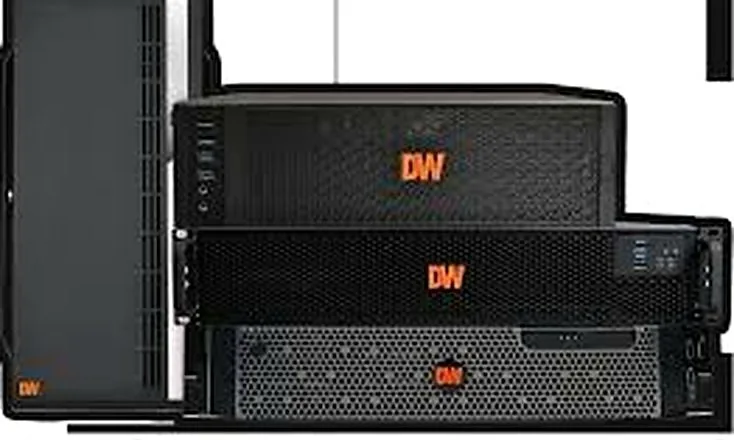
Digital Watchdog Blackjack NVR servers installed and recording by Michigan Security Systems
DW servers installed by our own technicians
Quick Answer

How do I get support for my Michigan Security Systems equipment?

Michigan Security Systems customers can get support three ways: send the service request form on this page, call 586-466-4490 (toll free 1-800-941-6797), or have a technician connect remotely with TeamViewer QuickSupport. We reply to every service request within 1 business day, Monday to Saturday, 8AM to 7PM. Alarm monitoring is the one service we run 24/7. Phone apps for iPhone and Android, computer software like DW Spectrum, and manuals are linked below for every brand we install.

Phone Apps

Download the App for Your Phone

Find your system below and tap App Store for an iPhone or iPad, or Google Play for an Android phone. Every app is free from the manufacturer. Not sure which one you need? Ask us and we will set it up with you.

Digital Watchdog

DW Spectrum Mobile

For DW Spectrum servers

Digital Watchdog

DW Mobile Plus

For VMAX recorders

Hanwha Vision (Wisenet)

Wisenet mobile

For Wisenet NVRs & cameras

Axis Communications

AXIS Camera Station Pro & 5

For Camera Station

PDK (ProdataKey)

PDK Access by ProdataKey

Mobile credential & admin

Brivo

Brivo Mobile Pass

Mobile credential

Avigilon

Avigilon Unity Video

For Unity Video (ACC)

Avigilon

Avigilon Alta Open

Open Alta doors

Rhombus

Rhombus

Cameras & alerts

Aiphone

AIPHONE IXG

For IXG intercom systems

Hikvision

Hik-Connect

For Hikvision recorders

Ubiquiti UniFi

UniFi Protect

For UniFi cameras

Ubiquiti UniFi

UniFi Access

Manage doors (admins)

Ubiquiti UniFi

UniFi Endpoint

Unlock doors (employees)

Honeywell / Resideo Alarms

Total Connect 2.0

Arm, disarm & alerts

Northern Video

NorthernView

For N3 Series recorders

Speco Technologies

Speco One

For NX, NXL & NXP NVRs

Speco Technologies

Speco Blue

For NR & HR recorders

VIVOTEK

VIVOTEK iViewer

Cameras, NVRs & VAST

Uniview (UNV)

EZView

For Uniview NVRs

InVid Tech

InVid Vision

For Vision Series

ButterflyMX

ButterflyMX

Open doors & answer calls

HID Global

HID Mobile Access

Mobile credential

Your login comes from Michigan Security Systems or your system administrator. If you do not have one, send a service request.

Manuals, Apps & Downloads

Find Your System: Help, Manuals & Downloads

Pick your brand to go straight to the manufacturer’s official help pages, software and app downloads. These links always have the newest versions. Not sure what brand you have? The name is usually printed on the recorder, the camera or the door reader. Or just ask us.

Digital Watchdog

Cameras, recorders & video software

Our Digital Watchdog page →

Phone app

DW Spectrum MobileFor DW Spectrum servers
DW Mobile PlusFor VMAX recorders

Manufacturer tech line: 866-446-3595 · Mon–Fri 9AM–8PM ET

Hanwha Vision (Wisenet)

Cameras, NVRs & WAVE software

Our Hanwha Vision page →

Phone app

Wisenet mobileFor Wisenet NVRs & cameras

Avigilon

Unity, Alta Video & Alta Access

Our Avigilon page →

Phone app

Avigilon Unity VideoFor Unity Video (ACC)
Avigilon Alta OpenOpen Alta doors

Computer software

CDVI

Access control & door hardware

Our CDVI page →
  • CDVI access control & locks

    Atrium controllers, keypads, maglocks and door hardware.

Manufacturer tech line: 866-610-0102

Hikvision

Cameras & recorders (older systems)

Our Hikvision page →

Phone app

Hik-ConnectFor Hikvision recorders

Computer software

Manufacturer tech line: 1-866-200-6690

Hikvision is restricted for many U.S. buyers. If you still run one, see what Michigan businesses should do.

Ubiquiti UniFi

UniFi Protect cameras & UniFi Access doors

Our Ubiquiti UniFi page →

Phone app

UniFi ProtectFor UniFi cameras
UniFi AccessManage doors (admins)
UniFi EndpointUnlock doors (employees)

Computer software

Links open the manufacturer’s own website in a new tab. Manufacturer phone lines are mainly built for installers, so call us first and we will handle it with them for you.

Quick Fixes

Common Problems and What to Try First

Simple checks that solve many service calls. If a quick fix does not work, request service and tell us what you already tried.

Which app do I use to see my cameras on my phone?

It depends on your system. Digital Watchdog servers use DW Spectrum Mobile, Hanwha uses Wisenet mobile, Axis uses AXIS Camera Station, Northern Video uses NorthernView, Ubiquiti uses UniFi Protect for cameras and UniFi Access or UniFi Endpoint for doors, and Rhombus uses the Rhombus app. All are free on the App Store and Google Play, and the links are in the Phone Apps section of this page. If you are not sure which system you have, request service and we will set the app up with you.

A camera shows offline or a black screen. What should I check first?

Look at the network switch the cameras plug into. If its lights are off, check that it has power and reset the breaker or power strip. If only one camera is out, the cable or that camera is usually the cause. Restart the recorder or server last, from its menu, not by pulling the plug. If it is still out after a restart, send us a service request and note which camera.

My mobile app will not connect from outside the building.

First make sure the app works on the building Wi-Fi. If it does, the problem is usually the internet connection or a router change at your site. A new internet provider or a new router often breaks remote viewing. Tell us if anything changed with your internet and we can reconnect it, often remotely.

How do I save or export video for the police or insurance?

In DW Spectrum, select the camera, drag across the timeline to mark the clip, right-click and choose Export Video. In other systems, look for Export, Backup or Download on the playback screen. Save to a USB drive or your desktop. If you need help pulling footage, call us with the date, time and camera and we can export it for you.

How do I add a new employee or a fob in PDK?

Sign in at pdk.io, open People, choose Add Person, then give them a group and a credential (fob, card or mobile). Their door access follows the group rules. The PDK help center linked above has step-by-step articles, or we can set it up for you.

I forgot my recorder or app password.

For your safety, password resets have to be done by someone who can prove they own the system. Send a service request or call us and a technician will reset it with you. Never post a password or a reset code on social media or send it by text to someone you do not know.

Some doors will not unlock with a card, fob or phone.

If one person has the problem, check their schedule and group in the access software. If one door fails for everyone, the door may be on a locked schedule, lost power, or the reader may be offline. If every door stops at once, check the internet connection at the controller. Call us if a door is stuck locked or stuck unlocked.

The date and time on my cameras is wrong.

Wrong time usually means the recorder lost power or cannot reach a time server. Set the time in the recorder or server settings, then turn on automatic time (NTP) if it is available. Correct time matters if you ever need video as evidence.

My recorder is beeping or shows a disk error.

A beep or disk warning often means a hard drive is failing or full. Write down the message on the screen and send a service request. Do not unplug or remove drives yourself, because that can erase recorded video.

My alarm keypad shows a trouble or low battery message.

Trouble messages often mean a low battery in a sensor or the panel, or a lost phone or internet signal. Write down the exact message and call us during business hours. If the alarm is going off or you get a monitoring call, follow the monitoring center's instructions. Alarm monitoring runs 24/7.

Can a technician fix my system remotely?

Often, yes. Software settings, apps, users, schedules and many camera issues can be fixed remotely with TeamViewer QuickSupport (see below). Hardware like failed cameras, cables, drives or door locks needs a site visit.

Remote Support

Download TeamViewer QuickSupport

Our technicians use TeamViewer to fix software, app and settings problems on your computer or server without a site visit. It is already installed on the Digital Watchdog servers we set up. For any other computer, use QuickSupport.

Stay safe: only share your TeamViewer ID and password with a Michigan Security Systems technician you are on the phone with. We will never call you out of the blue and ask for remote access.

  1. 1

    Call or request service first

    Call 586-466-4490 or send a service request so a Michigan Security Systems technician is ready to help.

  2. 2

    Download QuickSupport

    Use the Windows or Mac button below. QuickSupport runs without installing and without admin rights.

  3. 3

    Open it and read us your ID

    Open the file. It shows an ID and a password. Read them only to the technician you are on the phone with.

  4. 4

    Watch us work

    You will see everything we do on your screen. Close QuickSupport when we are done, and the connection ends.

Service Request

Request Service

Send this form and a Michigan Security Systems technician will reply within 1 business day. For a door stuck unlocked or a full system outage during business hours, please call 586-466-4490.

Have this ready

  • Your company name and site address
  • The brand and type of system (cameras, doors, intercom, alarm)
  • Which camera, door or device has the problem
  • When it started, and anything that changed (power outage, new internet, construction)
  • A photo of any error message on the screen or keypad

Support hours

Mon–Sat 8AM–7PM
Phone: 586-466-4490
Toll free: 1-800-941-6797
Email: Info@michigancamerasystems.com

Alarm monitoring runs 24/7. All other service is handled during business hours.

1Your contact information

2Your system

3The problem

By submitting, you agree to be contacted about your request. We never share your information.

Our Michigan Security Family

Macomb County · Wixom · Milford
Michigan · Ohio · Indiana
Mon–Sat 8AM–7PM · 24/7 Monitoring for Alarm Customers
586-466-4490
Toll Free: 1-800-941-6797
Chat with Us
Home Commercial Security SystemsSecurity Cameras Access Control Alarm Systems Audio & Video Structured Cabling Video Intercom Wireless & WiFi Gate & Perimeter Alarm Monitoring Camera Repair & Takeover Vape Detection AI Security Cameras Manufacturers For Contractors Projects Case Studies About Blog Reviews
Free Plan BuilderGet a Free Assessment
Call 586-466-4490
Call Now Get a Free Assessment